Generating a Purchase Payment
Generating a Purchase Payment
The purpose of this payment method is to enter a one off payment for the supplier, or if you need to send immediate payment to a supplier. When you select the supplier, enter the payment details and save and close. This method will only allow payment to the selected supplier.
To view details on generating a continuous payment against suppliers, customers (refund), ledger and jobs, see Generating a Cash Payment in the Cash Book section.
To generate a Purchase Payment:
-
Select Suppliers from the folders list to the left of the main screen.
-
In the main screen, select the supplier to whom you want to generate a payment.
-
In the Purchases menu bar, select Payment:
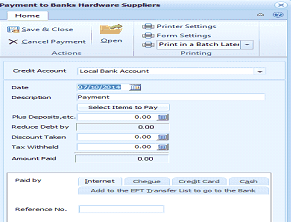
The Purchase Payment screen in ABM. The title bar reads "Payment to Banks Hardware Suppliers." The toolbar on the Home tab includes buttons for Save & Close, Cancel Payment, and Open, along with a Printing section with Printer Settings, Form Settings, and Print in a Batch Later options. Below the toolbar are fields for Credit Account (Local Bank Account dropdown), Date (showing today's date), and Description (Payment). A "Select Items to Pay" button is prominent. Additional fields include Plus Deposits etc (0.00), Reduce Debt By (0.00), Discount Taken (0.00), Tax Withheld (0.00), and Amount Paid (0.00). At the bottom, the "Paid By" section shows payment method options as tabs: Internet, Cheque, Credit Card, and Cash, with a checkbox "Add to the EFT Transfer List to go to the Bank" and a Reference No. field.
Payment to Ace Electronics
Payment Menu Bar The Payment menu bar provides the following options:
-
Open: Opens the current supplier for editing or viewing.
-
Printing: Provides options for printing the payment upon saving, later in a batch, or not at all. Click the arrow to the right of the Printing to view options. Settings for the printer or the forms can also be set. If desired, a batch of payments can be printed together once they are all completed.
-
Cancel Payment: This option cancels all the information entered on this payment.
-
Save & Close: This option processes the payment and closes it.
Payment Screen
-
Credit Account: Select the credit account relevant to this payment from the drop-down list.
To set up a default (most frequently used) bank account:
-
Date: Enter the date of payment here or press F3 or click the button to select from the calendar. By default, today's date is selected.
-
Description: The text entered here, typically 'Payment,' appears on the supplier's statement.
-
Select Items to Pay: Select this option to choose the outstanding debts paid this time. Various options are available within this screen to offset any particular debt or the oldest debt, or even to offset the debt partially.
-
Plus Deposits, etc: Enter here the amount paid that is not related to any outstanding invoices, and so on. A typical example to enter would be a deposit, if one was paid.
-
Reduce Debt By: This field updates to take account of the amount paid plus any discount taken.
-
Discount Taken: The amount entered here is the prompt payment discount taken by the supplier.
-
Amount Paid: This is the actual amount paid to the supplier. This field is automatically updated.
-
Paid By: Enter the method of payment here by selecting either Transfer, Cheque, Credit Card, or Cash. If payment is by transfer, a reference number must be entered; if payment is by cheque, a cheque number must be entered; if payment is by credit card, the card and authorisation details must be entered; and if payment is by cash, a receipt number must be entered. These fields will automatically appear after you have selected the method of payment. Note: If the method of payment is Cash, then an option will appear allowing you to specify if that cash payment is to be deducted from cash on hand (reduced from the amount to be deposited to the bank), or is from other cash available.
Save Settings To save the information you have entered, select 'Save and Close'.