Editing a Product Account
Editing a Product Account
Sometimes it might be necessary to change the details on individual stock accounts, for example, alternate product (if you have sourced another alternative product in lieu of the item in question) or minimum quantity (if you can order a particular stock item and have it delivered a lot quicker than in the past, you might want to increase the minimum quantity).
This can be done as follows:
To edit a Product Account:
-
Select** Products** in the Folders List (left of screen), and the Product List is displayed:
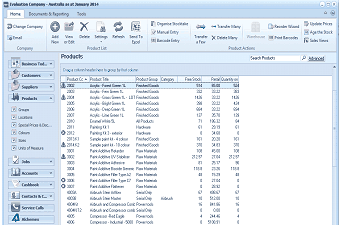
The Products list view in ABM. The title bar reads "Evaluation Company - Australia as at January 2014." The toolbar includes buttons for Email, Add New, Settings, Organise Stocktake, Transfer a Few, Transfer Many, Reorder Wizard, Update Prices, Manual Entry, Barcode Entry, Refresh, Send To Excel, and Product Actions. The main grid shows products with columns for Product Code, Product Title, Product Group, Free Stock, and Total Quantity. Products listed include items like "Acrylic - Forest Green 1L," "Acrylic - Lime Green 1L," and paint additives, each with their product group (FinishedGoods, Paints, etc.) and stock quantities.
Product List
-
Double-click the product whose details are to be edited and the product account is displayed: The product screen will display summary details for each location together with the prices for different units of measue. The date the product was created will be dislayed next to the Product Type.
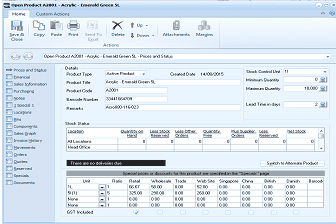
The Open Product screen for product A(2001) - Acrylic - Emerald Green 5L in ABM. The title bar reads "Open Product A(2001) - Acrylic - Emerald Green 5L." The toolbar includes Save & Close, Copy, Paste, Print, Delete, Attachments, and Margins buttons. The left panel shows navigation including Prices and Styles, Product Details, Sales Information, Transaction History, Consignment, Quantities, and others. The Prices and Styles tab is active showing the Details section with Product Type (Active Product, created 14/06/2015), Product Code (A2001), fields for Minimum Quantity, Maximum Quantity, and Lead Time in Days. The Stock Status section shows a grid with columns for Location, Quantity on hand, Free Stock, Quantity In, Quantity Avail, Quantity Back, and other stock metrics for locations like Head Office. Below is a pricing section showing fields for Price, Retail, Wholesale, Trades, Gross Profit, and GST Included with percentage calculations. A "Switch to Alternate Product" link is visible.
Acrylic - Emerald Green Product Account
-
Edit the details as required. To view each section in detail, see Setting up Product Accounts.
**Save Settings **To save the settings, select 'Save and Close' at the top of the screen.