Bulk Deletion of Products
Bulk Deletion of Products
You may wish to delete a number of products at the same time. For example you may have imported a supplier price list, and find that you have imported products that you do not normally stock or you may have a range of products that are now discontinued.
To delete multiple products select Products and from the menu bar select Actions and then select Delete Many Products. The following screen will appear.
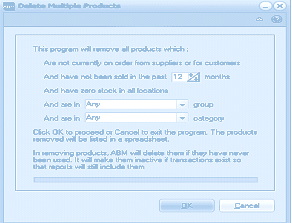
The Delete Multiple Products dialog in ABM. The dialog explains: "This program will remove all products which: Are not currently on order from suppliers or for customers, And have not been sold in the past [12-24] months, And have zero stock in all locations." Below are filter fields: "And are in [Any] group" and "And are in [Any] category." A note explains: "Click OK to proceed or Cancel to exit the program. The products removed will be listed in a spreadsheet." An additional warning states: "In removing products, ABM will delete them if they have never been used. It will make them inactive if transactions exist so that reports will still include them." OK and Cancel buttons appear at the bottom.
To delete multiple products
- Select the period of inactivity. You can decide how many months that the products were inactive for. If you wish to remove products that have not been sold in the past year then select 12 months. Note: If there are customer or supplier orders outstanding, then the products will not be removed. Also, if there are movements on that product before the period selected then the products will not be physically removed but marked as inaction. The reason for this is that it will be maintained for reports purposes and tracking of customer/supplier orders.
- Select the product group (if any). You can restrict the deletion of the products to a particular group if required or leave as Any for all groups.
- Select the product category (if any). You can restrict the deletion of the products to a particular category if required or leave as Any for all groups.
- Select OK to delete the products.
Warning: If you have manually added new products and select Delete Many Products to delete products that were imported then these new products will get deleted.