Financial and Tax Periods
Financial and Tax Periods
With ABM, transactions are always processed in the current period, with the option of changing the processing date to an earlier period. From this screen you will have the option to close or block postings in previous periods by clicking Close Period.
You will have selected the period your financial year starts and confirmed the number of periods used and the period end dates in the Creating a New Company. To prevent users from posting back into prior periods, change the Administration user group options. See Users and Groups for more details.
You can access the Financial and Tax Periods settings in two ways:
- In the main menu bar, select Tools and Financial & Tax Periods.
or:
- In the Accounts section, select GST/VAT from the list of sub-categories, and select GST/VAT Periods from the GST/VAT Reporting toolbar at the top of the screen.
The Financial & Tax Periods screen appears as below:
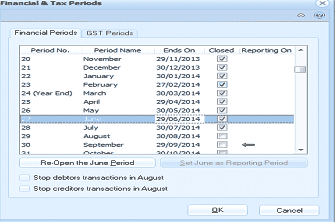
The "Financial & Tax Periods" dialog box with two tabs: "Financial Periods" (currently selected) and "GST Periods". The Financial Periods tab displays a table with columns: Period No., Period Name, Ends On, Closed, and Reporting On. Multiple periods are listed including Period 20 (November, ends 30/11/2013), Period 21 (December, ends 30/12/2013), Period 22 (January, ends 30/01/2014), Period 23 (February, ends 27/02/2014), Period 24 (Year End - March, ends 30/03/2014), Period 25 (April, ends 29/04/2014), Period 26 (May, ends 30/05/2014), and subsequent periods for July, August, September, and October. One period row is highlighted/selected. At the bottom are buttons: "Re-Open the June Period" and "Set June as Reporting Period". Below are two checkboxes: "Stop debtors transactions in August" and "Stop creditors transactions in August". OK and Cancel buttons are at the bottom right.
Financial & Tax Periods
Financial Periods The financial or reporting period you have set will be the balance-to-date figure. When you view ledger accounts, the Balances and Budgets section will show the balance for the current reporting period and next period. It is also the default reporting period when producing reports.
To view or change your reporting period: Move up or down to select a period.
-
Select Set as Reporting Period to set the highlighted period as the focus of reports.
-
Select Close Period to close or block postings in previous periods.
-
Select Re-Open Period to re-open the highlighted period.
** Restrict posting of Debtor or Creditor transactions in a prior period.** Although you have set the reporting period to the current month, there are occasions when you wish to post transactions into the prior period. These transactions may be ledger journals or purchase invoice received late. Therefore, you may not wish to close the prior period but you do want to block the posting of either Debtor or Creditor transactions to the prior period. You can select to block either Debtors or Creditors transactions from being posted to a prior period and allow other posting. to achieve this simply select the Debtor or Creditor (or both) blocking option.
When you have confirmed both your financial and Tax periods, select OK.
GST/VAT Periods The GST or VAT period may be different to the reporting period, as you might receive invoices for that period after you have sent off your GST/VAT returns.
-
The current period will last: Select from the drop-down list how often you submit your company Tax returns.
To view or change your Tax period: Move up or down to select a period.
-
Select Set as Reporting Period to set the highlighted period as the focus of reports.
-
Select Close Period to close or block postings in previous periods.
-
Select Re-Open Period to reopen the highlighted period.
When you have set both your financial and Tax periods, select OK.