Setting up a Tax Category
Setting up a Tax Category
To set up a new Tax Category:
-
Select Accounts in the Folders list, select GST/VAT and a list of existing GST or VAT categories (if any) will appear:
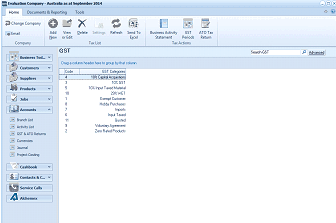
The ABM main screen showing the "GST" list view within the Accounts section. The left panel displays the folder navigation tree with Business Tools, Customers, Suppliers, Products, Accounts (expanded to show sub-items including GST & ATO Returns), Cashbook, Contacts & CRM, Service Calls, and Addresses. The main area shows a list of GST/Tax categories in a table with columns for category details. Visible categories include entries such as "10% Input Taxed Material", "GST Free", "Input Taxed", "Luxury Purchases", "Fuel Taxed", "Exports", "Capital Acquisitions", and "Zero Rated Products" with their corresponding tax rate values. The toolbar at the top provides options including Search GST, Add New, Delete, Settings, Refresh, Send To Excel, Business Activity Statement, and ATO Tax Returns.
List of current GST or VAT categories
-
Select New on the menu bar at the top of the screen and an Add New GST or VAT Categories screen will appear:
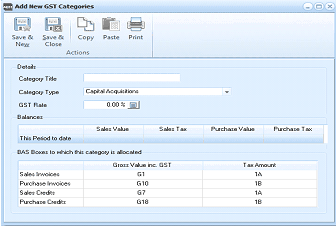
The "Add New GST Categories" dialog box with a toolbar containing Save & New, Save & Close, Copy, Paste, and Print buttons. The form has a "Details" section with fields for: Category Title (empty text field), Category Type (dropdown set to "Capital Acquisitions"), and GST Rate (showing "0.00 %"). Below is a "Balances" section header followed by a "This Period to date" table with columns: Sales Value, Sales Tax, Purchase Value, and Purchase Tax (all currently empty/zero). At the bottom is a "BAS Boxes to which this category is allocated" section showing a table with columns for "Gross Value inc. GST" and "Tax Amount". The rows list: Sales Invoices (G1, 1A), Purchase Invoices (G10, 1B), Sales Credits (G7, 1A), and Purchase Credits (G18, 1B).
Add New GST/VAT Categories
Details
-
Category Title: Enter the category title here as you would like to see it in reports.
-
Category Type: Choose a category type by selecting the appropriate option from the drop-down list, such as Exports. Selecting the category type determines how purchases and sales are allocated to your Tax return.
-
GST/VAT Rate: Enter the Tax rate (if any) applicable to this category.
Balances ABM automatically updates these fields once the GST/VAT category is used in a transaction.
BAS Boxes to which this category is allocated (Australia only) ABM advises which BAS boxes will be updated according to the selected GST/VAT category.
Save Settings When you have entered the relevant tax category details, select either: Save and Close: This will save the GST/VAT category information and bring you back to the main menu. or: Save and New: This will save the Tax category information and open a new Add New GST/VAT Categories screen.