Entering Retentions
Entering Retentions
Entering Retention Amounts
Retentions can be entered either while invoicing a job or using the project invoicing module.
Sales Invoicing
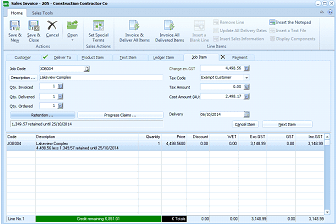
The "Sales Invoice" window is displayed showing an invoice being created for "Construction Contractor Co." The window has a toolbar at the top with buttons including Save & Close, Cancel, Set Special, Review & Complete, Invoice All, and other options. The invoice header shows fields for Job Description, Tax Code, Tax Amount, Cust Amount, and Extend Customer fields. Below are fields for invoice details including a reference to "Link this Complex". A "Progress Claims" section is visible with a date field. The main grid area shows line items with columns for Code, Description, Units, Quantity, Price, Discount, Exc GST, GST, and other columns. A line item for JOB004 is visible. At the bottom of the invoice are totals and a "Credit message" section. The overall layout represents a sales invoice entry screen with retention capabilities.
When invoicing a job and retentions apply, the sales program will automatically calculate the amount of retention to be deducted, based on the retention information entered for the job subject to the maximum amount to be retained. You can select this button to edit the details of the retention.
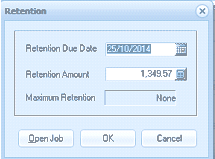
The "Retention" dialog box is displayed as a small popup window. It contains three fields: "Retention Due Date" (showing "25/10/2014" with a calendar picker button), "Retention Amount" (showing "1,349.57"), and "Maximum Retention" (showing "None"). At the bottom of the dialog are three buttons: "Open Job", "OK", and "Cancel". This dialog allows users to view and edit retention details including the due date and retention amount for the job invoice.
The date when the retention is due for collection can be entered here.
Note: the retention amounts for each job are cumulative until the retention has been invoiced. Therefore, changing the due date, will change the due date of the total retention being held for this job.
If you invoice the charges to date on a job, or invoice a stage, the retention amount will be calculated on the amount invoiced. If you add further charges, and invoice those further charges, or invoice other stages, then an additional amount will be calculated for retentions, and added to the first amount.
Example
First invoice raised for 1000.00, retention amount is 100.00 (@ 10% of invoice value). The total retention is 100.00 with a date due of say 01/12/2015, being the expected date of completion of the job, or when the retention will be released.
Invoice subsequent charges for 2000.00, with a retention amount of 200.00. The total of the retention due from this customer is now 300.00, being 10% of the total invoiced to date of 3000.00
**Note **If the two invoices which are for the same customer, are not related to the same job, then the first retention amount should be invoiced before the second job invoice is issued, or a separate job should be created.