Invoicing
Invoicing
To Invoice a Retention:
Select Jobs in the Folders list (left of screen) and the retention menu appears underneath.
Select Retentions, and a list of existing retentions will appear in the main viewing area (right of screen)
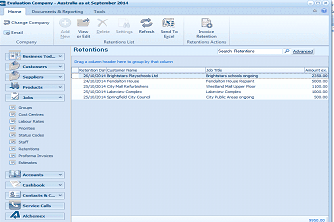
The ABM main application window is shown displaying the "Retentions" list view. The title bar shows "Evaluation Company - Australia as at September 2014". The left side shows a folder navigation tree with sections including Business Tod..., Customers, Suppliers, Products (expanded to show sub-items). The main viewing area on the right displays a "Retentions" list with toolbar options including View, Retentions List, Send To, Refresh, and a "Resource Retention" button, plus "Search Retentions" bar and "Advanced" link. The data grid shows outstanding retention records with columns for dates, customer references (like "Brightstars Playschools Ltd"), job titles (like "Brightstars schools ongoing", "Westland Mall Upper Floor"), and retention amounts. Multiple retention entries are visible with their corresponding due dates and amounts. This screen is used for selecting retentions to invoice.
List of outstanding retentions.
To invoice the required retention, select that retention from the list and select Invoice Retention from the menu bar.
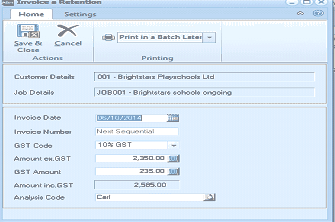
The "Invoice a Retention" dialog window is displayed with Home and Settings tabs at the top. The toolbar contains Save & Close, Cancel buttons under "Actions", and a "Print in a Batch Later" dropdown under "Printing". The form shows fields for "Customer Details" (showing "001 - Brightstars Playschools Ltd"), "Job Details" (showing "JOB001 - Brightstars schools ongoing"), "Invoice Date" (with a date field and calendar picker), "Invoice Number" (showing "Next Sequential"), "GST Code" (showing "10% GST"), "Amount ex.GST" (showing "2,350.00"), "GST Amount" (showing "235.00"), "Amount inc.GST" (showing "2,585.00"), and "Analysis Code" (showing "Carl"). This form is used to generate an invoice for a retention amount with associated tax details.
You can now enter the Tax details together with a sales analysis code.
Note: You will not be able to invoice a retention until the current date is equal or later than the due date of the retention.