Editing Viewing Retentions
Editing Viewing Retentions
Editing or Viewing details of Retentions
To view the details of un-invoiced retentions Select Jobs in the Folders list (left of screen) and the retention menu appears underneath.
Select Retentions, and a list of existing retentions will appear in the main viewing area (right of screen).
The list can be sorted by Due Date, by Customer, by Job or amount.
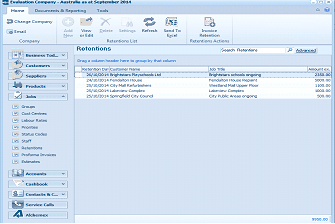
The ABM main application window is shown displaying the "Retentions" list view. The title bar shows "Evaluation Company - Australia as at September 2014". The left side shows a folder navigation tree with sections including Business Tod..., Customers, Suppliers, Products (expanded to show sub-items including Retentions highlighted). The main viewing area on the right displays a "Retentions" list with toolbar options including View, Retentions List, Send To, Refresh, and others, plus a "Search Retentions" bar and "Advanced" link. The data grid shows outstanding retention records with columns for dates, customer references, job titles, and retention amounts. Visible entries include retentions for "Brightstars Playschools Ltd" for "Brightstars schools ongoing", "City Mall Refurbishments" for "Westland Mall Upper Floor", "Springfield City Council" for "City Public Areas ongoing", and others. Each row shows a due date and retention amount (e.g., 1,000.00, 1,000.00).
List of outstanding retentions.
To view the details of the retention or change the due date double click on the required retention and the details screen will appear.
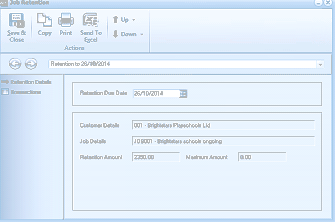
The "Job Retentions" dialog window is displayed with a toolbar at the top containing Save & Close, Copy, Print, Send To, and Email buttons, plus Up and Down navigation arrows. Below the toolbar is a breadcrumb showing "Retention to 26/08/2014". The left side shows two navigation tabs: "Retention Details" (currently selected) and "Transactions". The main area shows the Retention Details with a "Retention Due Date" field (showing "26/10/2014" with a calendar picker button). Below that are read-only fields for "Customer Details" (showing "001 - Brightstars Playschools Ltd"), "Job Details" (showing "JOB001 - Brightstars schools ongoing"), "Retention Amount" (showing "2,995.00"), and "Maximum Amount" (showing "0.00"). This screen allows viewing and editing of retention due dates.
The retention due date can be changed if required.
To view the transactions relation to the retention deductions, select transactions and this will display the invoice details.