Editing Cost Centres
Editing Cost Centres
Sometimes it might be necessary to edit a Cost Centre.
To edit a Cost Centre:
-
Select Jobs in the Folders list (left of screen) and the second level menu appears.
-
Select Cost Centres and a list of existing cost centres appears in the main viewing area (right of screen).
-
Double-click the cost centre name that you want to edit and the details appear as below:
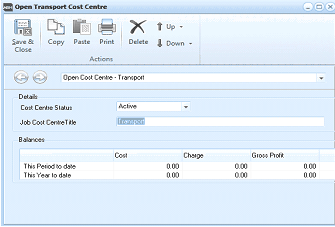
The "Open Transport Cost Centre" dialog window is displayed with a toolbar at the top containing Save & Close, Copy, Paste, Print, Delete, Up, and Down buttons under an "Actions" section. Below the toolbar is a breadcrumb showing "Open Cost Centre - Transport". The Details section contains a "Cost Centre Status" dropdown set to "Active" and a "Job Cost Centre Title" field with the value "Transport". The Balances section displays a grid with columns for Cost, Charge, and Gross Profit, with rows for "This Period to date" and "This Year to date", all showing values of 0.00.
Installations Cost Centre
-
Edit the cost centre title as required. See Adding Cost Centres for details.
**Save Settings **To save the settings, select Save and Close at the top of the screen.