Setting up Foreign Currencies
Setting up Foreign Currencies
ABM allows transactions to be processed using specified currencies. When you set up your company, a selection of main currencies will be set up automatically. However, you might want to add additional currencies. Each customer and supplier is assigned a currency upon setup. The system can store an unlimited number of currencies at one time, and automatically processes the gains/losses resulting from currency fluctuations when you change the exchange rates.
Before setting up a currency, you must set up your Realised and Unrealised Foreign Exchange Account, which will handle exchange rate gains and losses. See Maintaining Exchange Rates.
To set up a new Currency:
-
Select Accounts (left of screen), then select Currencies and a list of existing currencies (if any) appears:
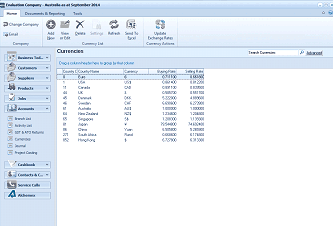
The ABM main application window showing the Currencies list. The title bar reads "Evaluation Company - Australia as at September 2014". The toolbar shows buttons including Email, Add, New, Delete, Settings, Refresh, Send To Excel, Currency List, Update Exchange Rates, and Currency Address. The left navigation panel shows the folder tree with Accounts expanded and Currencies selected. The main area displays a "Currencies" data grid with a "Search Currencies" search bar and "Advanced" button. The grid shows columns for: Country, Country Name, Currency Code, buy rate, sell rate, and other values. Listed currencies include: UK, Canada, USA, Europe, Denmark, Sweden, New Zealand, Singapore, Japan, China, Yuan, HongKong, and others, each with their respective currency codes (GBP, CAD, US$, Euro, DKK, SEK, NZS, S$, Yen, Yuan, HK$) and exchange rate values.
List of Existing Currencies
-
Select New on the menu bar at the top of the screen and a Add New Currencies screen appears:
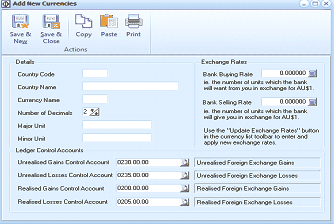
The "Add New Currencies" dialog window in ABM. The toolbar shows Save & New, Save & Close, Copy, Paste, and Print buttons. The left side contains a "Details" section with fields for: Country Code, Country Name, Currency Name, Number of Decimals (with up/down arrows, showing 2), Major Unit (e.g., "Dollars"), and Minor Unit (e.g., "Cent"). On the right side is an "Exchange Rates" section with fields for: Bank Buying Rate (set to 0.000000, with a note "is the number of units which the bank will want from you in exchange for AU$1"), and Bank Selling Rate (set to 0.000000, with a note "is the number of units the bank will give you in exchange for AU$1"). Below is a tip: "Use the 'Update Exchange Rates' button on the toolbar to apply new exchange rates." The bottom section shows "Ledger Control Accounts" with four fields: Unrealised Gains Control Account (with description "Unrealised Foreign Exchange Gains"), Unrealised Losses Control Account ("Unrealised Foreign Exchange Losses"), Realised Gains Control Account ("Realised Foreign Exchange Gains"), and Realised Losses Control Account ("Realised Foreign Exchange Losses"). Each has a ledger account code field and a description.
Add New Currency
Details
-
Country Code: Enter a code for the country here. This will be the recognised international code for that currency. For example, Australia is 61.
-
Country Name:
Enter the name of the country here as you want to see it in reports, for example, Australia. -
Currency Name: Enter the currency symbol here as you want to see it in reports and during transactions, for example, AU$.
-
Number of Decimals: Use the arrow buttons to select the number of decimals for this currency, for example, dollars have two while yen has zero.
-
Major Unit: Enter the largest unit of the specified currency in plural form, for example, Dollars.
-
Minor Unit: Enter the smallest unit of the specified currency in plural form, for example, Cent.
Exchange Rates
-
Bank Buying Rate: Enter the rate at which your bank will buy currency from you before any fees are deducted.
-
Bank Selling Rate: Enter the rate at which your bank will sell this currency to you before any fees are deducted.
Ledger Control Accounts
-
Unrealised Gains Control Account: Enter the Ledger Account for Unrealised Foreign Exchange Gains. This will record a provision for a potential gain on foreign exchange because of the change in exchange rate.
-
Unrealised Losses Control Account: Enter the Ledger Account for Unrealised Foreign Exchange Losses. This will record a provision for a potential loss on foreign exchange because of the change in exchange rate.
-
Realised Gains Control Account: Enter the Ledger Account for Realised Foreign Exchange Gains. This will record the actual gain on foreign exchange because of the change in exchange rate when the transaction has been fully paid.
-
Realised Losses Control Account: Enter the Ledger Account for Realised Foreign Exchange Losses. This will record the actual loss on foreign exchange because of the change in exchange rate when the transaction has been fully paid.
Note: If the currencies table has already been established to handle overseas transactions and no new currencies are required, then no further action is required.
It is also possible to add new currencies at any time. For example, if you are adding a new customer in Setting up Customer Accounts and you are asked to specify the currency, if the currency does not exist, you can gain access to the 'Add New Currency' screen by clicking the button to the right of the field and following the instructions outlined above.
Save Settings When you have entered the relevant currency details, select either:
Save and Close: This will save the currency information and bring you back to the main menu.
or:
Save and New: This will save the currency information and open a new Add New Currency screen.