Maintaining Exchange Rates
Maintaining Exchange Rates
If you intend trading with overseas customers, you will need to maintain exchange rates on a regular basis. This might be done at the start of the day's processing or at whatever interval you prefer. It is a good idea to get into the habit of doing this first thing in the morning, every morning, as this will eliminate the danger of forgetting some currencies.
Once the exchange rate is changed, ABM will scan all outstanding invoices and credits and calculate gains and losses where applicable. The Nominal Ledger variation and Balance Sheet Accounts are then updated automatically.
To change/update Exchange Rates:
-
Select Accounts in the Folders list.
-
In the list of sub-categories, select Currencies.
-
On the menu bar, select Update Exchange Rates, and a Foreign Currencies Exchange Rates screen appears as below:
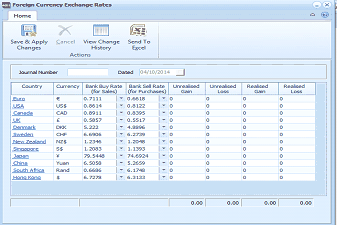
The "Foreign Currency Exchange Rates" screen in ABM. The toolbar at the top shows buttons: Save & Apply Changes, Cancel, View Change History, and Send To Excel under "Home" and "Actions" sections. Below the toolbar are fields for Journal Number and Dated (showing 04/10/2014). The main area displays a data grid with columns: Country, Currency, Bank Buy Rate (for Sales), Bank Sell Rate (for Purchases), Unrealised Gains, Unrealised Losses, Realised Gains, and Realised Losses. Multiple currency rows are listed including: UK (GBP), USA (US$), Canada (CAD), Europe (Euro), Sweden (SEK), Denmark (DKK), Japan (Yen), New Zealand (NZS), Singapore (S$), Japan (Yen - duplicate), China (Yuan), South Africa (Rand), and Hong Kong (HK$). Each row shows the buy rate, sell rate, and gain/loss columns with numerical values. Most gain/loss columns show 0.00.
Foreign Currency Exchange Rates
-
Journal Number: Enter a reference number that will be used to identify this journal in reports later. On the top right hand side of the screen the following fields appear:
-
Bank Buy Rate (for sales): Enter the bank's buying rate here. This is normally for supplier transactions where you are buying base currency
-
Bank Sell Rate (for purchases): Enter the bank's selling rate here. This is normally for customer transactions where you are selling base currency.
-
View Change History: You can view the previous exchange rate changes by selecting a currency and selecting View Change History.
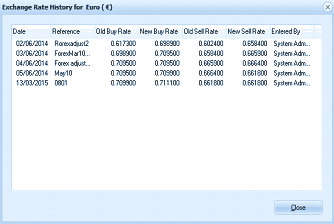
The "Exchange Rate History for Euro" dialog window showing a historical record of exchange rate changes. The title includes the Euro symbol. The data grid displays columns: Date, Reference, Old Buy Rate, New Buy Rate, Old Sell Rate, New Sell Rate, and Entered By. Multiple rows show rate change entries from dates including 02/06/2014, 02/06/2014, 04/06/2014, 05/06/2014, and 13/01/2015, each with reference names (ForexAdjst2, ForexArt12, Forex adjust, May10, 0801), old and new buy/sell rates showing gradual rate changes, and "System Adm..." (System Administrator) in the Entered By column. A "Close" button is at the bottom.
Save and Apply Changes: Computes and posts the unrealised gains or losses to the Accounts.