Setting up Product Information
Setting up Product Information
Setting up Product Information
Select a product and select the purchasing tab. Select the preferred supplier and edit the details of that supplier.
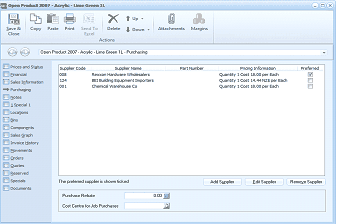
ABM Product maintenance screen titled "Open Product 3069 - Acrylic - Lime Green 1L" showing the Purchasing tab. The toolbar shows buttons for Save All, Copy, Paste, Print, Send To, Delete, Transactions, and Attachments. Navigation tabs include Photos and Status, Purchasing, and Special L. The Purchasing tab displays a grid with columns: Supplier Code, Supplier Name (showing entries like "006 Ransom Hardware Wholesalers," "004 BN Building Supplier/Cement Co," and "001 Chemical Warehouse Ca..."), Part Number, Pricing Information (showing quantity and cost details like "Quantity 1 Cost 1.84.00 per Batch"), and Preferred (with a checkmark on one entry). Below the grid is a note "The preferred supplier is shown below" with buttons for Add Supplier, Edit Supplier, and Remove Supplier. At the bottom are fields for Purchase Multiple, Cost Centre for Job Purchases, and a dropdown.
When the supplier information screen appears, you can nominate this product as being available for Back To Back Ordering by placing a tick in the appropriate box. (Note: the supplier needs to be set for processing back to back orders)
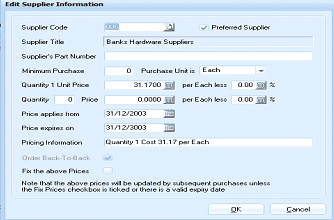
ABM "Edit Supplier Information" dialog window. Fields include: Supplier Code (showing "06"), Preferred Supplier checkbox (checked), Supplier Title ("Banks Hardware Suppliers"), Supplier's Part Number (empty), Minimum Purchase (0), Purchase Unit is ("Each"), Quantity 1 Unit Price (31.1700) with "per Each less 0.00 %" fields, additional Quantity and Price rows (showing 0), Price applies from (31/12/2003), Prices expires on (31/12/2003), and Pricing Information summary ("Quantity 1 Cost 31.17 per Each"). An "Order Back-To-Back" checkbox is visible for enabling back-to-back ordering. Below is a "Fix the above Prices" checkbox with a note explaining prices will be updated by subsequent purchases unless this checkbox is ticked or there is a valid expiry date. OK and Cancel buttons are at the bottom.