Processing Back To Back Orders
Processing Back To Back Orders
Processing Back To Back Orders
When you process a customer order, and that order contains a product which is marked for Back to Back Ordering, and the product is not in stock, then a screen will appear showing the details of the product and the supplier. Select Create these Orders and Close to place either an automatic order, or consolidated order with the supplier.
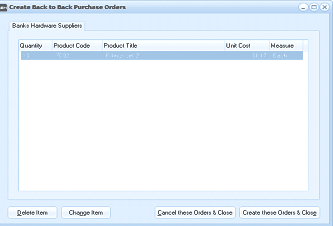
ABM "Create Back to Back Purchase Orders" dialog window. The title bar shows "Banks Hardware Suppliers" as the supplier. The grid displays columns: Quantity, Product Code, Product Title, Unit Cost, and Measure. The grid area is empty/ready for product entries. At the bottom of the dialog are four buttons: "Delete Item," "Change Item," "Cancel these Orders & Close," and "Create these Orders & Close."
Converting a Consolidated Order to a Purchase Order
Select the Requisition, and select the appropriate requisition for that supplier. Open the requisition and mark the requisition as approved. When the requisition is approved it can be converted to a purchase order. Note, the consolidated order will have a note attached to the order showing a list of customers who are due to receive the products placed on this order.
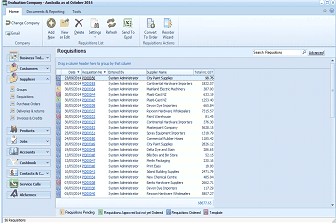
ABM "Requisitions" list screen within the Evaluation Company application. The toolbar shows buttons for Change Company, Add, Files, Settings, Refresh, Send To, Convert, and Regular. The left sidebar (Business Trail) shows navigation categories including Suppliers, Customers, Products, Contacts & CRM, and Service Calls. The main content area displays a "Requisitions" grid with columns for date, reference numbers, System Administrator (user), requisition details, and supplier names (showing entries like "Mainland Electric Machines," "Banks Hardware Suppliers," "City Paint Supplies," etc.). Tabs at the bottom include "Requisitions Pending," "Requisitions Approved but not Ordered," "Requisitions Ordered," and "Template." A "Search Requisitions" option and "Advanced" button are at the top right.
Delivering a Back To Back Purchase Order
When you process a purchase delivery and select an order which was created by the Back to Back Order procedure, a note will appear detailing the customers who have placed orders for this product. It will then be necessary to dispatch these products to these customers.
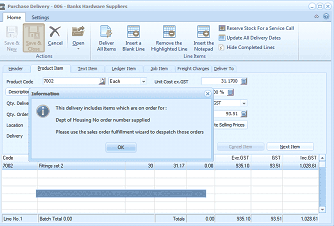
ABM "Purchase Delivery - 006 - Banks Hardware Suppliers" transaction screen. The toolbar shows buttons for Save, Cancel, and Settings, along with options like Reserve Stock For a Service Call, Update All Delivery Dates, and Hide Completed Lines. The transaction has tabs for Product Item, Text Item, Ledger Item, Job Item, and Freight Charges with a "Deliver To" field. Product fields include Product Code (showing "7002"), Description ("Information"), Qty. Delivered, Unit Cost exc GST, and Discount %. An information popup message is displayed stating: "This delivery includes items which are on order for: Dept of Housing No order number supplied. Please use the sales order fulfillment wizard to dispatch these orders." The popup has an OK button. Below are order line items showing Code, Description (e.g., "Fittings set 2"), Qty, Price, and GST columns. The status bar shows "Line No. 1" and "Batch Total 0.00" with running totals.