Wine Equalisation Tax
Wine Equalisation Tax
Australian users who are in liquor-related industries will need to handle wine equalisation tax.
To select the ability to account for Wine Equalisation Tax (WET) select Tools\Options and select Company details. Select the Check Box to Use Wine Equalisation Tax, then enter the Liquor Licence number.
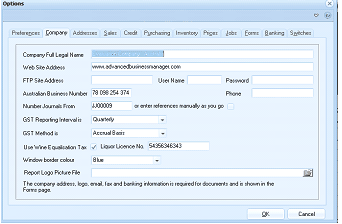
The "Options" dialog window with the "Company" tab selected. Other tabs visible across the top include: Preferences, Company (active), Addresses, Sales, Credit, Purchasing, Inventory, Pages, Jobs, Forms, Banking, and Systems. The Company section shows fields for: Company Full Legal Name, Web Site Address, FTP Site Address (with User Name and Password fields), Australian Business Number, Number Journals From (with "or enter references manually as you go" option), GST Reporting Intervals (set to "Quarterly"), GST Method (set to "Accrual Basis"), a "Use Wine Equalisation Tax" checkbox (checked) with a "Liquor Licence No." field showing a licence number, Window border colour, and Report Logo Picture File with a browse button. A note at the bottom states: "The company address, logo, email, fax and banking information is required for documents and is shown in the Forms page." OK and Cancel buttons are at the bottom.
Company Details Screen.
Set Up Customer Details
You need to select the customer maintenance screen and select the taxable status. This can be Taxable (Rebating), Exempt (Non Rebateable, Quoting (with Rebate) or Quoting (without Rebate. You need to enter the Liquor Licence Number. If you select Quoting, then you need to enter the Quoting Expiry Date. On the supplier maintenance screen you will need to select the tax status which can be either Taxable, Export or Quoting.
Calculation of WET
WET is calculated at the time of each relevant sale or purchase.