Business Activity Statement
Business Activity Statement
The Business Activity Statement (BAS) is the Australian equivalent to Tax or VAT returns. It is a two-page form made up of the Business Activity Statement and the Calculation Sheet. It is used as the return for GST and various other taxes, such as "Wine Equalisation Tax", "Luxury Car Tax", "FBT Instalments", and so on.
To access the Business Activity Statement:
-
Select Accounts in the Folders list, select GST and a list of existing GST or Tax categories (if any) appears as below:
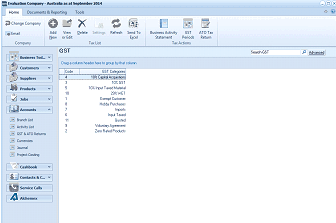
The ABM main application window showing the GST categories list. The title bar reads "Evaluation Company - Australia as at September 2014". The toolbar shows Edit, Add, View, Delete, Settings, Refresh, Send To Excel, Business Activity Statement, ATO Tax Returns, and GST/VAT Periods buttons. The left navigation panel shows the folder tree with Business Today, Suppliers, Products, Accounts (expanded to show Currencies, GST & ATO Returns selected), Branch List, Cashbook, Contacts & C., Service Calls, and Addresses. The main area displays a "GST" data grid with a "Search GST" search bar and "Advanced" button. The grid columns show a list of GST categories with their rates, including entries such as "10% Input Taxed", "0% GST Free", "0% Export", "Robby Purchases", "Input Taxed", "10%", and "Zero Rated Products" among others.
List of current GST or Tax categories
-
In the GST Reporting menu bar, select Business Activity Statement and a screen will appear:
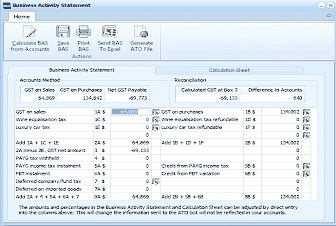
The "Business Activity Statement" screen in ABM. The toolbar at the top shows buttons: Calculate BAS from Accounts, Save BAS, Print BAS, Send BAS To Excel, Generate ATO File, under a "Home" tab. The main area has two tabs: "Business Activity Statement" (currently active) and "Calculation Sheet". On the left side under "Accounts Method" are fields showing GST on Sales, GST on Purchases, and Net GST Payable with calculated values. The main grid shows BAS boxes and their corresponding amounts, including entries for: GST on purchases, Wine equalisation tax, Luxury car tax, various tax amounts at different rates, PAYG tax withheld, PAYG/FBT income tax instalment, FBT instalment, and Deferred on imported goods. On the right side is a "Reconciliation" section showing "Calculated GST at Box 3" and "Difference to Accounts". A note at the bottom states that amounts and percentages can be adjusted by direct entry, and that changes will affect information sent to the ATO but will not be reflected in accounts.
Business Activity Statement
-
Calculate BAS from Accounts: Computes the Calculation Sheet and the BAS for the current tax period.
-
Save BAS: Saves the Calculation Sheet and the BAS contents to disk. The figures saved will appear in the BAS report.
-
Print BAS: Prints the Calculation Sheet and BAS.
-
Send BAS to Excel: Copies the table to Excel.
-
Send BAS to the ATO: Copies the BAS to the special file which will be collected by your ATO lodgement program.
Business Activity Statement The grid shows all BAS boxes and their corresponding amounts. ABM automatically calculates the amounts according to the current figures available in the accounts.
Click the Excel icon to the right of the selected BAS box to analyse the figures in Excel.
You can enter new amounts and percentages in the Business Activity Statement and the Calculation Sheet. This will change the information sent to the ATO but will not be reflected in your accounts.