Editing Customer Groups
Editing Customer Groups
Sometimes it might be necessary to change the details on a group of customers. For example, you might want to change their trading terms.
To edit a Customer Group:
-
Select Customers in the Folders list (left of screen) and the second level menu appears.
-
Select** Groups** and a list of existing groups (if any) appears in the main viewing area (right of screen).
-
Double-click the group name that you want to edit, and the details of that group appears as below:
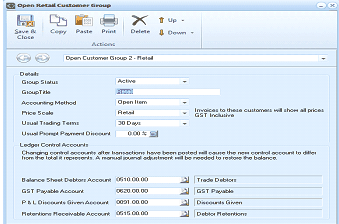 Image Description
The Open Retail Customer Group dialog for Customer Group 2 - Retail. The toolbar shows Save & Close, Copy, Paste, Print, Delete, and navigation (Up/Down) buttons. The Details section shows Group Status (Active), Group Title (empty field), Accounting Method (Open Item), Price Scale (Retail, with note "Invoices to these customers will show all prices GST Inclusive"), Usual Trading Terms (30 Days), and Usual Prompt Payment Discount (0.00 %). The Ledger Control Accounts section includes fields for Balance Sheet Debtors Account (0510.00), Trade Debtors, GST Payable Account (0620.00), GST Payable, P & L Discounts Given Account (0091.00), Discounts Given, Retentions Receivable Account (0515.00), and Debtor Retentions. A warning note states that changing control accounts after transactions have been posted will cause the new control account to differ from the retail if requested, and a manual journal adjustment will be needed to restore the balance.
Trade Customer Group
-
Edit the details as required (for a breakdown of each field, see Setting up Customer Groups).
**Save Settings **To save the settings, select 'Save and Close' at the top of the screen.