Deleting Customer Groups
Deleting Customer Groups
Sometimes it might be necessary to delete an unused group.
To delete a Customer Group:
-
Select Customers in the Folders list (left of screen) and the second level menu appears.
-
Select Groups and a list of any existing groups appears in the main viewing area (right of screen) as below:
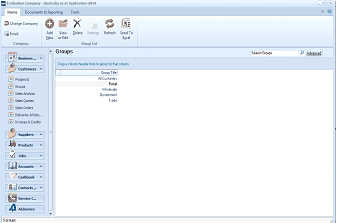 Image Description
The ABM main screen showing the Groups list under Customers. The left navigation panel displays folders including Customers, with Groups selected as a sub-item. The main area shows a list of customer groups with columns for Group Title. Three groups are listed: Retail, Wholesale, and Trade. The toolbar at top includes buttons for Email, Add, View, Delete, Settings, Refresh, Send To, and Group List options. A "Search Groups" bar with an Advanced option is visible.
View of Customer Group list
- Click once on the group that you want to delete, in this case Corporate, and either press the Delete key on your keyboard, or click Delete at the top of the screen. You will see the following prompt: "Are you sure that you want to delete the customer group record for Distributors." If you are sure that this is the group that you want to delete, select 'Yes'. If not, select 'No', and no deletions will have occurred.