Subcontractor Payments Reporting
Subcontractor Payments Reporting
The Australian Tax Office (ATO) require companies who obtain services from a sub-contractor engaged in the Construction Industry to submit an annual return of payments made to such sub-contractors.
If you are paying sub-contractors and are engaged in the Construction Industry then you will need to add additional information regarding your sub-contractor.
To do this edit the sub-contractor account (or enter when adding a new supplier) and enter the following information.
-
Is Sub-contractor. Select the check box to denote that that supplier is a sub-contractor
-
Tax Certificate. Enter the suppler tax certificate number
-
Report Taxable Payments. Select the check box to signify that this sub-contractor should be included in the Sub-Contractor Payments Report.
-
Sub-Contractor is Private Individual. If the Sub-contractor is a private individual, as opposed to a company, then select the check box. ** Note:** If you select private individual you will need to have a contact for that sub-contractor setup in the contacts section. If no contact is setup a message informing you to set it up will appear.
-
You will also need to ensure that you have a valid BSB number, Bank Account Number, ABN number and a valid address setup for the supplier.
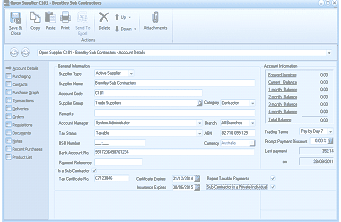
The supplier account editing screen titled "Open Supplier C181 - Dorothy Sub Contractors" showing the Account Details tab. The toolbar at the top includes Save & Close, Copy, Paste, Print, Delete, and Attachments buttons. The left panel shows navigation tabs: Account Details, Balances, Transaction History, Purchasing, Contacts, and Notes. The main form shows "General Information" fields including Supplier Type ("Active Supplier"), Supplier Title, Account Code ("C181"), Supplier Group ("Catalog - Contractor" dropdown), Currency ("AU$"), Payment Terms, Tax Status ("Taxable"), BSB Number, ABN Number, and Account Number. Additional fields visible include "Is a Sub Contractor" checkbox (checked), "Certificate Details" with a date, "Report Taxable Payments" checkbox, and "Sub-Contractor is a Private Individual" checkbox. On the right side is "Account Information" with fields for Payment Account, Current Balance, and related account details.
Sub-Contractor Account
Generating the ATO File
To generate the ATO file select Business Activity Statement (select GST & ATO Returns tab) and select Generate ATO File.
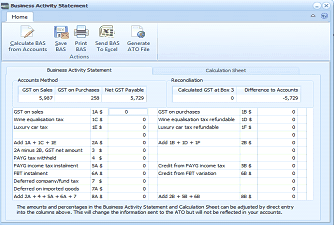
The "Business Activity Statement" screen with the toolbar showing buttons: "Calculate BAS from Accounts", "Save BAS", "Print BAS", "Send BAS To Excel", "Generate ATO File", and "Home". The screen displays the Business Activity Statement tab (alongside a Calculation Sheet tab), showing two sections: "Accounts Method" on the left with rows for GST on Sales, GST on Purchases, and Net GST Payable with calculated amounts, and "Reconciliation" on the right with "Calculated GST at Box 3" and "Difference to Accounts" fields. Below are additional BAS items including GST on purchases, Wine equalisation tax refundable, Luxury car tax refundable, various PAYG items, Credit from PAYG income tax, Credit from FBT variation, and other tax line items with corresponding values. A note at the bottom states that amounts can be adjusted by direct entry but will not be reflected in accounts.
When you select generate the ATO file the following screen will appear.
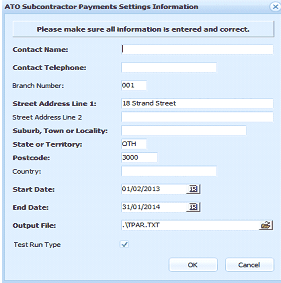
The "ATO Subcontractor Payments Settings Information" dialog box with a header message "Please make sure all information is entered and correct." The form contains the following fields: Contact Name (empty), Contact Telephone (empty), Branch Number (showing "001"), Street Address Line 1 (showing "18 Strand Street"), Street Address Line 2 (empty), Suburb, Town or Locality (empty), State or Territory (showing "OTH"), Postcode (showing "3000"), Country (empty), Start Date (showing "01/02/2013" with a calendar picker), End Date (showing "31/01/2014" with a calendar picker), Output File (showing "..TPAR.TXT" with a browse button), and a "Test Run Type" checkbox (checked). OK and Cancel buttons are at the bottom of the dialog.
- Contact Name: Enter the contact name of the person responsible for making the return in your organization.
- Contact Telephone: Enter a contact telephone number
- Branch Number: If a business has one ABN but multiple branches, each branch will have an individual branch number.You should show your branch number in the boxes provided. If you do not have a branch number leave the boxes blank.
- Address: Enter the address together with state and post code.
- Start Date: The starting date of the report.
- End Date: Select the end date for the report.
- Output File: Enter the name of the file and select the folder where this file is to be saved.
- Test Run: If you want to test the output before sending the file to the ATO then select Test Run.