Setting up Product Groups
Setting up Product Groups
Before processing transactions through the Stock Ledger, you will need to set up product groups. It is useful to organise stock items in groups, as certain information can be set up for each group that will apply to each stock item associated with it. For example, if the items within this product group are all counted together in a stock take.
When grouping products together, it is important to consider any products on which you provide special prices or discounts.
To add a Product Group:
-
Select Products in the Folders list (left of screen) and the second level menu appears underneath.
-
Select Groups and a list of any existing groups appears in the main viewing area (right of screen).
-
Select New on the menu bar and an Add New Product Group screen appears:
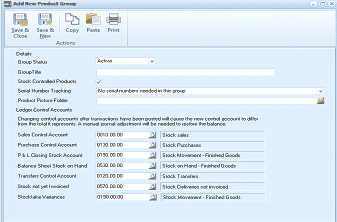
The Add New Product Group screen in ABM. The toolbar includes Save & Close, Save & New, Copy, Paste, and Print buttons. The Details section shows fields for Group Status (Active dropdown), Group Title (empty), Stock Controlled Products checkbox, Serial Number Tracking ("No serial numbers needed in the group" dropdown), and Product Picture Folder. A warning note about changing control accounts is displayed. The Ledger Control Accounts section lists: Sales Control Account (0100.00.00 - Stock sales), Purchase Control Account (07.00.00.00 - Stock Purchases), P & L Closing Stock Account (07.06.00.00 - Stock Movement - Finished Goods), Balance Sheet Stock on Hand (05.60.00.00 - Stock on Hand - Finished Goods), Transfers Control Account (01.90.00.00 - Stock Transfers), Stock not yet Invoiced (05.70.00.00 - Stock Deliveries not invoiced), and Stocktake Variances (0190.00.00 - Stock Movement - Finished Goods).
Add New Product Group
Details:
-
Group Title: Enter the group title here as you want it to appear in reports, for example, Hardware.
-
Stock Controlled Products: This box is only checked if the items in the group are products you want to control. When you purchase stock, the quantity and value will increase, and when you sell products, the value and quantity will decrease. This box should remain unchecked if you want to track the purchase or sale of a product, but do not want to maintain a stock value such as service or labour hours.
-
Serial Number Tracking: Click the drop-down list to select whether serial numbers are to be tracked from the product group or not. You can set up a product group called Serial Tracked, if you want to group serial tracked products together.
You can also set up a Lot Numbered product group, by selecting one of the lot numbered options from the Serial Number Tracking drop-down list, if you wish.
-
Product Picture Folder: Click the folder to select the folder (disk directory) used to store pictures of products in the group. Do not select anything if the folders vary.
Ledger Control Accounts When you enter a transaction, the postings to the control accounts will be posted according to the ledger accounts you specify.
-
Sales Control Account: Select the Profit and Loss Sales Account for sales revenue generated by these products
-
Purchase Control Account: Select the Profit and Loss Purchase Account for purchases of these products.
-
Profit and Loss Closing Stock Account: Select the Cost of Sales Account for the Closing Stock of these products.
-
Balance Sheet Stock on Hand: Select the Balance Sheet Account for the value of Stock on Hand.
-
Transfers Control Account: Select the Cost of Sales Account for stock used for internal products.
-
Stock not yet Invoiced: Select a Balance Sheet Account for stock which has been delivered to you but not yet invoiced.
-
Stocktake Variances: If you wish to post the variances arising from stocktake entries you can select a Balance Sheet Account to record the value of adjustments as a result of a stocktake.
Save Settings When you have entered the relevant product details, select either:~ Save and Close: This will save the product group information and bring you back to the main menu. or: Save and New: This will save the product group information and open a new Add New Product Group screen. The drop-down lists are defaulted to your previous entries.