Editing a Product Group
Editing a Product Group
Sometimes it might be necessary to change the details on a product/stock group.
To edit a Product Group:
-
Select Products in the Folders list (left of main screen) and the second level menu appears.
-
Select Groups and a list of any existing product groups appears in the main viewing area (right of screen), as below:
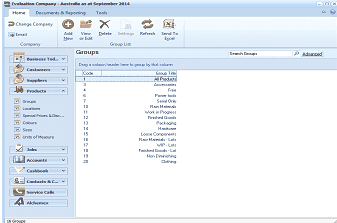
The Product Groups list view in ABM showing all existing product groups. The toolbar includes standard list management buttons. The left navigation panel shows the Products folder tree with Groups selected. The main grid displays groups with columns for Code, Group Title, and type indicator, listing groups like Paints, Hardware, Finished Goods, Packaging, and others.
Product/Stock Groups
-
Double-click the group name that you want to edit and the details of that group appears as below:
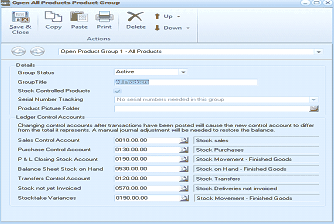
The Open Product Group screen in ABM showing "Open Product Group 1 - All Products." The toolbar includes Save & Close, Copy, Paste, Print, Delete, Up, and Down buttons. The Details section shows fields for Group Status (Active dropdown), Group Title (All Products), Stock Controlled Products checkbox (checked), Serial Number Tracking ("No serial numbers needed in the group" dropdown), and Product Picture Folder. A warning note about changing control accounts after transactions have been posted is displayed. The Ledger Control Accounts section lists: Sales Control Account, Purchase Control Account (01.96.00.00), P & L Closing Stock Account (01.96.00.00 - Stock Movement - Finished Goods), Balance Sheet Stock on Hand (02.00.00.00 - Stock on Hand - Finished Goods), Transfers Control Account, Stock not yet Invoiced (05.70.00.00 - Stock Deliveries not invoiced), and Stocktake Variances (0190.00.00 - Stock Movement - Finished Goods).
Accessories Product Group
-
Edit the details as required (for a breakdown of each field, see Setting up Product Groups).
**Save Settings **To save the settings, select 'Save and Close' at the top of the screen.