Scheduling a Business Bulletin
Scheduling a Business Bulletin
To schedule the running of a Business Bulletin at a particular time, select Scheduled Tasks and select New Task.
Step 1.
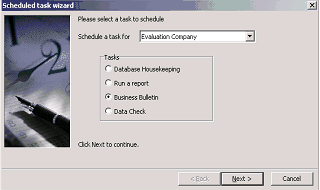
Windows "Scheduled task wizard" dialog (Step 1). The header reads "Please select a task to schedule." A dropdown field labeled "Schedule a task for" shows "Evaluation Company" selected. Below are four radio button options under "Tasks": Database Housekeeping, Run a report, Business Bulletin (selected), and Data Check. A "Click Next to continue" instruction is at the bottom with Back, Next, and Cancel navigation buttons.
Select the company for which you wish to run the Business Bulletin. The company is available from the drop-down list and select Business Bulletin. When you have finished, select Next. Note: If you select Scheduled Tasks from the Tools menu within the company database, then you will not need to select the company, and that option will not be visible.
Step 2.
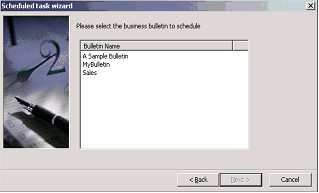
Windows "Scheduled Task wizard" dialog (Step 2) for selecting a business bulletin. The text reads: "Please select the business bulletin to schedule." A list displays available bulletin names: "A Sample Bulletin," "MyBulletin," and "Sales." Back, Next, and Cancel buttons are at the bottom.
Select the required Bulletin from the list.
Step 3.
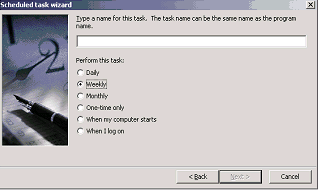
Windows "Scheduled task wizard" dialog (Step 3) for naming and scheduling the bulletin task. The text reads: "Type a name for this task. The task name can be the same name as the program name." An empty text field is shown for entering the task name. Below under "Perform this task:" are radio button options: Daily, Weekly (selected), Monthly, One-time only, When my computer starts, and When I log on. Back, Next, and Cancel buttons are at the bottom.
Enter the name of the task. Example: My Business Bulletin and enter the frequency for the bulletin to be run.
Step 4.
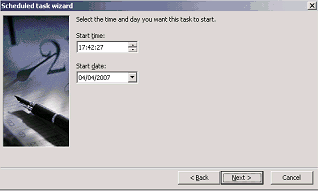
Windows "Scheduled task wizard" dialog (Step 4) for setting the start time and date. The text reads: "Select the time and day you want this task to start." Two fields are shown: Start time (showing "17:42:27" with up/down arrows) and Start date (showing "04/04/2007" with a dropdown calendar). Back, Next, and Cancel buttons are at the bottom.
Enter the start time and date you wish this bulletin to be run.
Step 5.
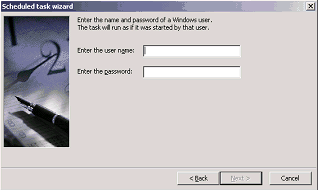
Windows "Scheduled task wizard" dialog (Step 5) for entering credentials. The text reads: "Enter the name and password of a Windows user. The task will run as if it was started by that user." Two fields are shown: "Enter the user name:" (text field) and "Enter the password:" (password field). Back, Next, and Cancel buttons are at the bottom.
Enter the windows username and password. Note this is the username that applies to the computer where the task will be run from.
Step 6.
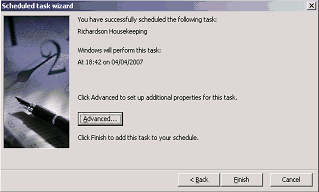
Windows "Scheduled task wizard" dialog (Step 6 - final step). The confirmation screen displays the successfully scheduled task name and the scheduled date and time. An "Advanced..." button allows setting up additional properties. "Click Finish to add this task to your schedule." Back, Finish, and Cancel buttons are at the bottom.
Select Finish to save the scheduled task.