Editing a Supplier Account
Editing a Supplier Account
Sometimes it might be necessary to change the details on individual accounts, for example, trading terms, address, or telephone number or simply view the supplier account.
To access a Supplier Account:
-
Select Suppliers in the Folders list (left of main screen) and a full list of any existing suppliers will be displayed in the main viewing area (right of screen).
Note: It is possible to sort all suppliers in ascending or descending order under titles such as Supplier Code, Supplier, and Supplier Address, by selecting the relevant chosen heading (on top of main viewing area). Once selected you will see an arrow beside the heading. If the arrow is pointing upwards, then this will sort in ascending order. If the arrow is pointing downwards, then this will sort in descending order. Simply select the heading to toggle between the two if required.
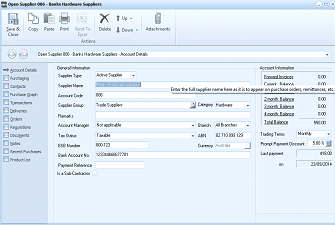
The Open Supplier account details screen in ABM. The title bar reads "Open Supplier 006 - Banks Hardware Suppliers." The toolbar includes buttons for Save & Close, Save & New, Copy, Paste, Print, Send To Excel, and Attachments. The left panel shows an Account Details navigation menu with sections for Purchasing, Deliveries, Invoices, Purchase Graph, Statements, Transactions, Requisitions, Consignments, Recent Purchase, and Product List. The main area shows the Account Details tab with General Information including Supplier Type (Active Supplier), Supplier Name, Supplier Group (Trade Supplier with a Category of Hardware), Account Manager (System Administrator with Branch set to All Branches), Tax Status (Taxable), ABN number, BSB Number (800123), Bank Account No, and checkboxes for "Is a Sub-Contractor." The right side shows Account Information including Forward Invoices (0.00), Current Balance, 30-60-90 Day aging columns, Trading Terms (Monthly), Prompt Payment Discount (5.00%), and Last Payment date (21/03/2014).
- Double-click the name of the supplier whose information you want to access and this will display their details in a new screen, as below:
- Ace Electronics Supplier Account
- Edit the details as required.
To view details of each section see Setting up Supplier Accounts. Save Settings To save the settings, select 'Save and Close' at the top of the screen.
Note: When you open a supplier account ABM Automatically Re-Calculates the Supplier Balance and Ageing. Therefore, If you open a supplier who has a lot of transactions, and the opening of such an account appears slow, then you can remove this option by selecting Tools\Options\Switches and Un-Select Re-calculate Each Time a Supplier is Viewed.
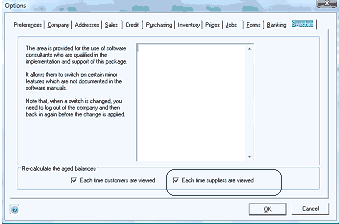
The ABM Options dialog box with the Switches tab selected. The dialog has multiple tabs across the top: Preferences, Company, Addresses, Sales, Credit, Purchasing, Inventory, Pages, Jobs, Exams, and Banking. The Switches tab is highlighted and active. A descriptive text area at the top explains that switches are provided for software consultants during implementation and support, allowing them to switch on certain features not documented in the software manuals. It notes that when a switch is changed, the user must log out of the company and log back in before the change is applied. Below this, in the "Recalculate the aged balances" section, there are two checkboxes: "Each time customers are viewed" and "Each time suppliers are viewed" (both are checked). OK and Cancel buttons appear at the bottom right.