Deleting a Supplier Account
Deleting a Supplier Account
It might be necessary for you to delete a Supplier Account if you cease trading with a supplier or the supplier goes out of business.
To access a Supplier Account:
-
Select Suppliers in the Folders list (left of main screen) and a full list of any existing suppliers will be displayed in the main viewing area (right of screen).
Note: It is possible to sort all suppliers in ascending or descending order under titles such as Supplier Code, Supplier, and Supplier Address, by selecting the relevant chosen heading (on top of main viewing area). Once selected you will see an arrow beside the heading. If the arrow is pointing upwards, then this will sort in ascending order. If the arrow is pointing downwards, then this will sort in descending order. Simply select the heading to toggle between the two if required.
-
Select the name of the supplier whose information you want to delete, as below, in order to highlight their name.
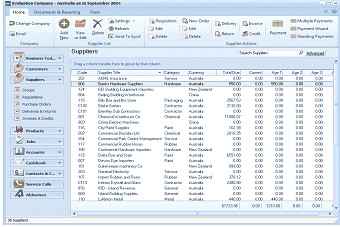
The Suppliers list view in ABM. The title bar reads "Evaluation Company - Australia as at September 2014." The toolbar includes buttons for Change Company, Email, Add New, Add Via Import, Delete, Settings, Refresh, Send To Excel, New Order, Delivery, Invoice, and Payment. A search bar labeled "Search Suppliers" and an "Advanced" button are at the top right. The left navigation panel shows a folder tree with Suppliers selected. The main area displays a grid of supplier records with columns for Code, Company, Country, Suburb, Phone, Balance, and Credit Limit. Multiple suppliers are listed including AAI Ducting Equipment Importers, Ace Electronics, Bike and Bits Club, and others. Each row shows the supplier's details such as country (Australia, New Zealand), city/suburb, phone number, account balance, and credit limit amounts.
View of Supplier List
- Press 'Delete' on your keyboard or alternatively click the 'Delete' button at the top of the screen.