Deleting Priorities
Deleting Priorities
Sometimes it might be necessary to delete a Priority.
To delete a Priority:
-
Select Jobs in the Folders list (left of screen) and the second level menu appears.
-
Select Priorities and a list of existing priorities (if any) appears in the main viewing area (right of screen) as below:
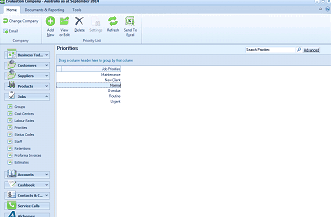
The ABM main application window is shown displaying the "Priorities" list view. The left side shows a folder navigation tree with sections including Business Tod..., Customers, Suppliers, Products (expanded to show sub-items including Priorities highlighted). The main viewing area on the right displays a "Priorities" list with a search bar labeled "Search Priorities" and an "Advanced" link. The list shows several priority entries including Maintenance, New Install, Normal, Tender, and Urgent. A toolbar at the top includes standard navigation and action buttons.
List of existing priorities
-
Click once on the priority that you want to delete, for example 'Urgent', and either press the 'Delete' key on your keyboard or select the 'Delete' button at the top of the screen.
You will see the following prompt: "Are you sure that you want to delete the priority code record for Urgent." If you are sure that this is the group that you want to delete, select 'Yes'. If not, select 'No', and no deletions will have occurred.