Setting-up Credit Policies
Setting-up Credit Policies
To Set-up a Credit Policy select Tools\Options and the select the tab Credit. This will open the following screen, which will allow you to add a new policy, or edit an existing policy.
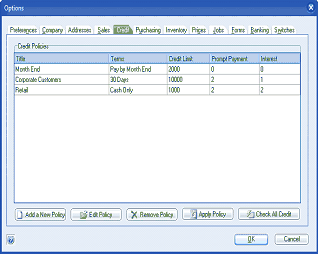
The Options dialog window showing the Credit tab selected. Across the top are tabs for Preferences, Company, Addresses, Sales, Credit (currently active/highlighted), Purchasing, Inventory, Prices, Jobs, Forms, Banking, and Switches. The main area displays a "Credit Policies" section with a table listing existing policies with columns for Title, Terms, Credit Limit, Prompt Payment, and Interest. Three policies are listed: "Month End" (Pay by Month End, 2000, 0, 3), "Corporate Customers" (30 Days, 10000, 2, 1), and "Retail" (Cash Only, 1000, 2, 2). Below the table are buttons for "Add a New Policy," "Edit Policy," "Remove Policy," "Apply Policy," and "Check All Credit." OK and Cancel buttons are at the bottom.
Add New Policy: To add a new policy, select Add New Policy and the following screen will appear.
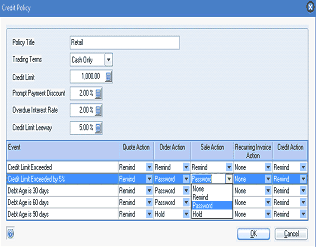
The Credit Policy dialog window for editing a policy. At the top are fields for: Policy Title ("Retail"), Trading Terms (dropdown showing "Cash Only"), Credit Limit (showing "1,000.00"), Prompt Payment Discount ("2.00 %"), Overdue Interest Rate ("2.00 %"), and Credit Limit Leeway ("5.00 %"). Below is an "Actions to be Applied" table with columns for Event, Quote Action, Order Action, Sale Action, Recurring Invoice Action, and Credit Action. The events listed are: "Credit Limit Exceeded" (with actions: Remind, Remind, Remind, None, None), "Credit Limit Exceeded by %" (with actions: Remind, Password, Password, None, None), "Debt Age is 30 days" (with actions: Remind, Password, None, None, Remind), "Debt Age is 60 days" (with actions: Remind, Password, Remind, None, None), and "Debt Age is 90 days" (with actions: Remind, Hold, Hold, None, None). Each action cell contains a dropdown. OK and Cancel buttons are at the bottom.
Policy Title: Enter a title that is appropriate to this policy. Example "Retail" for a policy covering all retail customers.
Trading Terms: Select the trading terms from the drop down list that will apply to this policy.
Credit Limit: Enter a credit limit that will apply to customers under this policy.
Overdue Interest Rate: Enter a rate that you wish to use to charge interest on overdue accounts by customers covered by this policy.
Credit Limit Leeway: You can enter a percentage so that when the customer exceeds the stated credit limit they would have a leeway before applying any sanction that maybe required.
Actions to be Applied: You can apply an action to any of the transactions listed and for any of the events for that transaction as follows.
- Remind: The operator can be reminded if an event has been triggered. Example when processing a sales invoice and the credit limit has been exceeded then the operator will be reminded that the credit limit has been exceeded.
- Password: The event can be set so that a supervisor password is required to continue processing.
- Hold: Transactions can be put on hold if an event is triggered.
- None: No action is required.
Events:
- Credit Limit Exceeded: You can apply an action for each of the transactions if the credit limit which has been set for this policy is exceeded.
- Credit Limit Exceeded by %: When you set the Leeway percentage then this event will be triggered when the credit limit is exceeded by the credit limit plus this percentage.
- Debtors Age is: You can apply an action when the debtors age balance is either 30, 60 or 90 days overdue.