Applying a Credit Policy
Applying a Credit Policy
You can apply a credit policy to a customer, or a group of customers from either the Tools\Options\Credit section, or by applying the policy to an individual customer.
Applying a Policy from the Credit Policy Tab
To apply the credit policy, select a policy, and then select the Apply Policy button.** Note:** if you apply a credit policy to a customer then you will not be able to amend the credit details, such as terms, or credit limit for that customer unless you change the customer to Manual Settings. Instead, the customer's terms, credit limit and credit actions will be derived from the credit policy that has been applied to them.
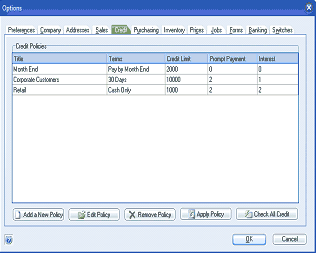
The Options dialog window showing the Credit tab, identical to the credit policies setup screen. The table displays the same three policies: "Month End" (Pay by Month End, 2000, 0, 3), "Corporate Customers" (30 Days, 10000, 2, 1), and "Retail" (Cash Only, 1000, 2, 2). Below the table are buttons for "Add a New Policy," "Edit Policy," "Remove Policy," "Apply Policy" (which is being referenced in the instructions), and "Check All Credit." OK and Cancel buttons are at the bottom.
The Apply button will bring up the following screen and you can then select an option from the drop down list. On clicking OK the Credit Policy will be applied to all the customers matching the selected criteria.
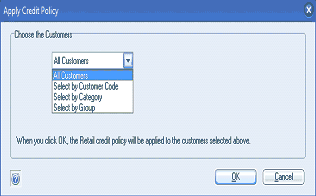
The "Apply Credit Policy" dialog window. It contains a "Choose the Customers" section with a dropdown list that is expanded showing the options: "All Customers" (highlighted/selected), "Select by Customer Code," "Select by Category," and "Select by Group." Below the dropdown is a message: "When you click OK, the Retail credit policy will be applied to the customers selected above." OK and Cancel buttons are at the bottom.
Editing A Credit Policy: You can change a credit policy by selecting that policy, and selecting the button "Edit Policy". When you have finished making the changes select "Check All Credit" and the changes will be applied to all customers governed by that policy. If you do not 'Check All Credit then the checks will be done automatically when the first user logs into the system the next day.
Applying a Policy to an Individual Customer:
To apply a policy to an individual customer, or change that customer to another existing policy, select the customer from the customer list and open the customer maintenance screen.
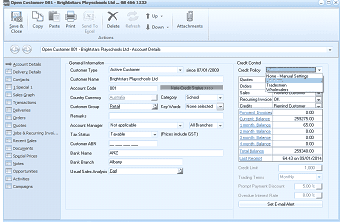
The Open Customer screen in ABM showing the Account Details tab for customer B01 - "Brightlaters Playschools Ltd." The toolbar includes buttons for Save & Close, Copy, Paste, Print, and others. The main area shows the "General Information" section with fields for: Customer Type (showing "Active Customer" with a date), Customer Name ("Brightlaters Playschools Ltd"), Account Code ("B01"), Country/Language, Customer Group (dropdown showing "Category"), Rewards, Account Manager ("Not applicable"), Tax Status ("Taxable" with checkbox "Prices include GST"), Customer ABN, Usual Sales Analysis Code ("Doll"), Usual Branch ("Albany"). On the right side is a "Credit Policy" section prominently displayed, showing a dropdown for selecting a credit policy (showing "Retail Policy"), with fields below showing Trading Terms, Credit Limit, and status indicators for various transaction types (Quotes, Orders, Sales, Recurring Invoices, Credits) with their corresponding actions. Additional fields show balance information and a "Set Email Alert" button.
You can now select a Credit Policy from the drop down list at the top right of the screen. Once you select the policy the status for the various processes will be displayed. Example if the customer has exceeded their credit limit, Sales will display the appropriate action such as "Password Required"
Applying Manual Settings: You can change the customers credit policy to any existing policy, or set it to "Manual Settings". If "Manual Settings" is selected, then you need to select an action for each of the processes (quotes, orders, sales, recurring invoices and credits). The actions that can be applied are selectable from the drop down list as follows:
- Remind: The operator will be reminded to advise the customer that their credit limit has been exceeded. This will appear as a Pop-Up message for the user. Example when processing a sales invoice and the credit limit has been exceeded, the operator will be reminded that the credit limit has been exceeded.
- Password: A supervisor password (someone who is authorised to change credit control settings) is required to continue processing.
- Hold: Transactions cannot be processed.
- OK: Nothing will occur if an event is triggered.
Note: If manual settings are applied, then the actions set will apply to that transaction type at all times (until changed)
Note: If 'Manual Settings are in use then the action may be triggered all the time, depending on the action selected. In the case of 'Remind, the reminder will be triggered when the credit limit is exceeded, whereas Password or Hold, will apply all the time irrespective of whether the credit limit is exceeded or not. Therefore, if you set Invoicing to Require a Password, a password is required each time an invoice is processed, as opposed to being applied when an event is triggered on a Credit Policy. Example, on a Credit Policy when the credit limit is exceeded, this will trigger the event which will require a password. However, with the customer set to Manual Settings, and Requiring a Password, the password will be required even if their credit limit is ok.
Automatic Credit Policy Checks:
When the first user logs into a company database each day ABM will check the credit policy rules as part of the automatic aged balances recalculation. If any customers are linked to a credit policy with an action for debt that has aged to 30, 60 or 90 days, their credit status will be automatically updated.
During the day, the credit status is also checked as new transactions are processed. Thus if a new transaction takes the customer over their credit limit, and the action on the customer's credit policy for 'Credit Limit Exceeded is to 'Remind, then the customer's credit status will be updated as soon as that transaction is processed.
Note that if a customer is set to use a manual credit policy, then the system will not automatically change their credit status.
Processing Transactions where a Credit Policy is in Place:
When you process transactions which invoke a credit policy action, then the following will apply.
Sales Transaction:
When you select a sales transaction, such as an order, then you will see the amount of credit remaining at the bottom of the screen. As you add line items to the order, the amount of credit remaining will reduce according to the value of the line item added (including Tax). When the credit limit is exceeded, the colour of the message will change. Note: Where the customer's credit limit has not been exceeded, the message stating the amount of credit remaining will in Green Background.
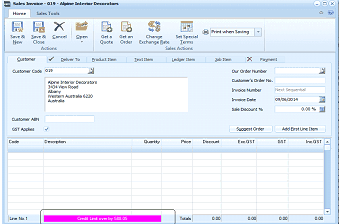
A Sales Invoice screen in ABM for customer G19 - "Alpine Interior Decorators." The toolbar includes buttons for Save & New, Save & Close, Set an Order, Get an Order, Change Customer, Set Exchange Rate, Set Spreads, and "Print when Saving" checkbox. Tabs across the top include Customer, Deliver To, Product Item, Text Item, Ledger Item, Job, and Payment. The main area shows customer details (Alpine Interior Decorators, 1504 Main Road, Avalon, Victoria 4120, Australia), invoice fields (Our Order Number, Your Reference No., Invoice No., Invoice Date, Trade Discount %, Total Discount %), and a line items grid with columns for Code, Description, Quantity, Price, Discount, Ex GST, GST, and Inc GST. One line item is visible. At the bottom, a status bar shows a credit remaining message highlighted in magenta/pink indicating "Credit limit exceeded" with a value, demonstrating how the credit limit warning appears during transaction processing.
Messages that will appear when an Action is invoked during processing.
Remind: If the action is to remind the customer, then when you click Save and Close or Save and New, a message will appear asking you to advise the customer that their credit limit has been exceeded. This message will state the credit limit, and the amount that the limit has been exceeded by.

An "Information" dialog box displaying the message: "Please advise the customer that their credit limit is 10,000.00 and is now exceeded by 29.20." This is the "Remind" action popup that appears when processing a transaction that causes a customer to exceed their credit limit. An OK button is at the bottom to dismiss the message.
Password: If a password is required, then a dialogue box requesting a password will appear. You will need to select a user who has the security option selected set to 'Can Change Credit Control Settings from the drop down list, and enter the password for that user. If your user name is not on the list, then you will need to get one of the users on that list to enter their password.
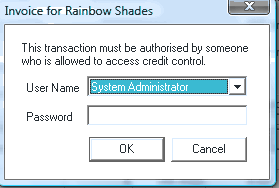
An "Invoice for Rainbow Shades" dialog box displaying the message: "This transaction must be authorised by someone who is allowed to access credit control." Below are fields for User Name (dropdown showing "System Administrator") and Password (text input). OK and Cancel buttons are at the bottom. This is the "Password" action dialog that appears when a credit policy requires authorization to proceed with a transaction.
Hold: If the transaction is to be placed on hold, then a message stating that the credit limit has exceeded will appear. If this message appears you will not be able to process the transaction.
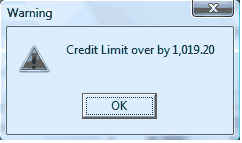
A "Warning" dialog box displaying a warning icon (triangle with exclamation mark) and the message: "Credit Limit over by 1,019.20." This is the "Hold" action warning that appears when a transaction is blocked because the customer's credit limit has been exceeded. An OK button is at the bottom to dismiss the message. The transaction cannot be processed when this warning appears.
What can be done to process a transaction if an action is invoked:
- If the transaction has invoked an action set for the specific credit policy, you can either, remove some of the line items so that the credit limit is not exceeded, or
- if you are processing a Sales Order, Sales Invoice or Point of Sale Invoice, you could obtain payment from the customer, and enter it by selecting the Payment tab, and entering the payment details. Otherwise you will need to cancel the transaction
**Receipts: **The processing of a receipt to a customer account will reduce the amount owed by that customer, and may increase the amount of credit remaining for that customer providing such receipt reduces the balance below the credit limit set.
Refunds: As refunds are usually the result of a Credit Note being issued, the Policy will have already applied to the issuing of the Credit Note. Therefore, no action will be taken on refunds.
**Journal Adjustments: **Whilst journal adjustments will affect the credit policy (either increase or decrease the balance), no messages will appear during processing, as a journal adjustment is an internal process which has the intention of making an adjustment to the account.
Charge Interest: If a company is normally charging interest on overdue accounts, then the interest will still be charged irrespective of the Credit Policy applied. Accordingly no action will be taken when processing Interest Charges.
Fulfillment Wizard: When processing transactions through the Fulfillment Wizard the following will apply;
- Customers on Hold: When you select the list of orders, and the customer is already on hold, a Flag indicating that the customer is on hold will be displayed next to the order. If the order, or the accumulation of orders, triggers the even to place the customer on hold, then a message will appear in relation to that customer when the invoices are being processed, and no deliveries or invoices will be processed.
- Password Required: When you select the list of orders, and the customer's status is that a "Password is Required", then the password will not be requested until the transaction is being processed. Similarly, if the order, or the accumulation of orders, triggers the event to "Require a Password", then a password will be requested when the invoices are being processed.
- Remind: No reminder message will be displayed when processing transactions through the Fulfillment Wizard.
Recurring Invoicing: When processing recurring invoices the following will apply;
- Customers on Hold: If the invoice, or the accumulation of invoices, triggers the event to place the customer on hold, then a message will appear in relation to that customer when the invoices are being processed, and no invoices will be processed.
- Password Required: If the invoice, or the accumulation of invoices, triggers the event to "Require a Password", then a password will be requested when the invoices are being processed.
- Remind: No reminder message will be displayed when processing Recurring Invoices.