Business Bulletin Wizard
Business Bulletin Wizard
To generate or modify a Business Bulletin select Accounts in the Navigation Bar and select Business Bulletin from the menu.
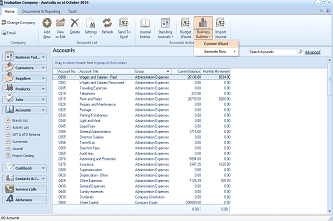
ABM main application screen showing the "Evaluation Company - Australia as at October 2011" window. The top toolbar shows buttons for Change Company, Add, Files, Delete, Settings, Refresh, Send To, Normal, Standing, Budget Report, and Touch Accounts. The left sidebar (Business Trail) shows navigation categories including Suppliers, Customers, Products, Contacts & CRM, Service Calls, and Report Control. The main content area displays the "Accounts" section with a grid listing ledger accounts with columns for Account code, Account Title (e.g., "Wages and Salaries - End," "Travel/Expenses," "Repairs and Maintenance"), Account type (showing "Administrative Expenses"), Budget, and other financial values. A "Drag a column header here to group by that column" area is at the top of the grid. The Accounts tab and Search Accounts button are visible at the top right.
Select Content Wizard from the drop down list and the following screen will appear.
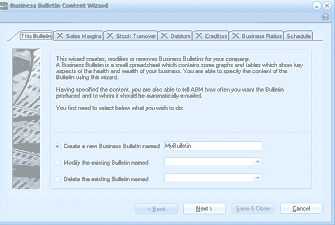
ABM "Business Bulletin Content Wizard" dialog window. Tabs across the top include: This Bulletin, Sales Margins (with X), Stock Turnover (with X), Debtors (with X), Creditors (with X), Business Ratios (with X), and Schedule. The "This Bulletin" tab is currently selected. The description reads: "This wizard creates, modifies or removes Business Bulletins for your company. A Business Bulletin is a small spreadsheet which contains some graphs and tables which show key aspects of the health and wealth of your business. You are able to specify the content of the Bulletin using this wizard." Below are instructions and three radio button options: "Create a new Business Bulletin named" (selected, with text field showing "MyBulletin"), "Modify the existing Bulletin named" (with dropdown), and "Delete the existing Bulletin named" (with dropdown). Navigation buttons at the bottom include Back, Next, Save & Close, and Cancel.
To Generate a Business Bulletin:
Enter the name you wish to assign to this Business Bulletin. The Bulletin will then be available under this name when you want to produce the information. Select Next to include the required information in the Bulletin.
Sales Margins: If you want to include Sales Margins in your Business Bulletin, then select Include this section in the Bulletin. You can then select to show the sales margins for one of the following options:
- In Total for All Products: This will show the margin for all product sales.
- Split By Product Group: This will show the margins for each product group.
- Split By Product Category: This will show the margins based on the product category assigned to products.
- For All Products Split By Location: This will show the margin for all product sales for each location.
Once you have selected one of the above you can then select the period for which you wish to analyse the margins. The periods available are:
-
Week: This weeks sales only.
-
Month: Total sales for this month.
-
Year: Sales for the year to date.
Note: You can select all of the above periods for analysis.
Stock Turnover
If you want to include information on how your stock is being managed, then select Include this section in the bulletin. You can then select to show the sales margins for one of the following options:
-
For All Products: This will show the margin for all product sales.
-
For Each Product Group: This will show the margins for each product group.
-
For Each Product Category: This will show the margins based on product category assigned to products.
Once you have selected one of the above you can then select the period for which you wish to analyse the stock turnover. The periods available are:
-
Today: Based on the stock on hand as of today.
-
A Month Ago: Based on the stock on hand as it was one month ago.
-
A Year Ago: Based on the stock on hand as it was a year ago.
Note: You can select all of the above periods for analysis.
Debtors:
If you want to include information on how your debtors are being managed, then select Include this section in the bulletin. You can then select to monitor your credit control by selecting one of the following options:
-
The Average Age of your Debtors in Days.
-
The Aged Total Amounts Due:
-
The Number who have Exceeded their Terms:
-
The Number who have Exceeded their Credit Limit:
Once you have selected one of the above you can then select the period for which you wish to analyse the debtor performance. The periods available are:
-
Today: Based on the balance of debtors as of today. Note: This is based on the balance of debtors as at Today's date (the computer date) and the sales for average of three months prior to Today's date.
-
A Month Ago: Based on the balance of debtors as they were one month ago. This is based on 30 Days back from Today's date.
-
A Year Ago: Based on the balance of debtors as they were a year ago. This is based on the balance of debtors as Today's date a year ago.
Note: You can select all of the above periods for analysis.
Creditors:
If you want to include information on how you have been managing you creditors, then select Include this section in the bulletin. You can then select to monitor your creditor management by selecting one of the following options:
- The Average Age of your Creditors in Days.
- The Aged Total Amounts Owed:
- The Number whose terms have been Exceeded:
Once you have selected one of the above you can then select the period for which you wish to analyse the debtor performance. The periods available are:
-
Today: Based on the balance of creditors as of today. Note: This is based on the balance of creditors as at Today's date (the computer date) and the purchases for average of three months prior to Today's date.
-
A Month Ago: Based on the balance of creditors as they were one month ago. This is based on 30 Days back from Today's date.
-
A Year Ago: Based on the balance of creditors as they were a year ago. This is based on the balance of debtors as Today's date a year ago.
Note: You can select all of the above periods for analysis.
Business Ratios
If you want to include business rations showing a summary of the performance of your business, then select Include this section in the bulletin. You can then select the following ratios:
- Debtors Days
- Stock Turnover
- Annual Asset Turnover
- Gross Profit %
- Net Profit %
- Asset Return
- Equity Return
- Liquidity Ratio
- Debt to Equity Ratio
- Current Asset Ratio
Note: The Business Ratios are based on the balance in the Ledger account for the current reporting period. Therefore, there could be a difference in the Debtor and Creditor days reported in the Debtors and Creditors section, because if the bulletin is run at a different date to the reporting period, then the figures upon which the ratios are based will be calculated from different balances.
Schedule Bulletin
The final screen of the wizard allows you to enter a list of e-mail addresses so that the bulletin can be e-mailed to appropriate people when it has been produced.
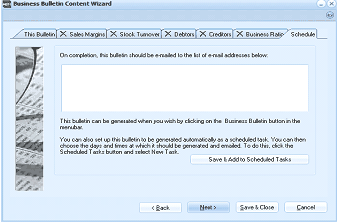
ABM "Business Bulletin Content Wizard" dialog showing the "Schedule" tab. Tabs across the top include: This Bulletin, Sales Margins (with X), Stock Turnover (with X), Debtors (with X), Creditors (with X), Business Ratios (with X), and Schedule. The Schedule tab is selected. The text reads: "On completion, this bulletin should be e-mailed to the list of e-mail addresses below:" followed by a large empty text area for entering email addresses. Below that is the note: "This bulletin can be generated when you wish by clicking on the Business Bulletin button in the menubar." A further paragraph explains: "You can also set up this bulletin to be generated automatically as a scheduled task. You can then choose the days and times at which it should be generated and emailed. To do this, click the Scheduled Tasks button and select New Task." A "Save & Add to Scheduled Tasks" button is shown. Navigation buttons at the bottom include Back, Next, Save & Close, and Cancel.
**Save and Add to Scheduled Tasks: **You can also add this to your scheduled tasks so that it will be automatically produced at a specified time and interval. See Scheduling Tasks
Save and Close: You can save and close your bulletin to be run later.