Barcode Printing
Barcode Printing
Barcode Printing
Some organisations may wish to generate their own Barcode labels. This could be labels for products already in stock, or as soon as a delivery arrives. To print Barcode labels in ABM, select the products list, and select Barcodes. The Barcode printing wizard will appear.
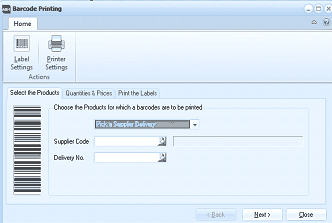
ABM "Barcode Printing" wizard dialog window. The toolbar shows Home tab with buttons for Label Settings and Printer Settings under Actions. Below are three wizard step tabs: "Select the Products," "Quantities & Prices," and "Print the Labels." The first tab is selected, showing "Choose the Products for which a barcodes are to be printed" with a dropdown set to "Pick a Supplier Delivery." Fields below include Supplier Code (with a lookup button) and Delivery No. (with a lookup button). A barcode graphic is displayed on the left side of the dialog. Navigation buttons at the bottom include Back, Next, and Close.
Barcode printing wizard.
Barcode Label Settings
Before you start printing labels you will need to set up the label settings, and what you want printed on the labels.
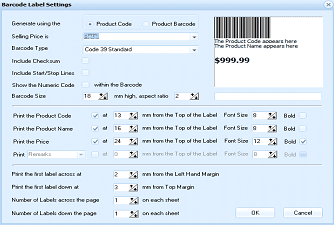
ABM "Barcode Label Settings" dialog window. The top section has options for "Generate using the" with choices for Product Code and Product Barcode. A "Selling Price is" dropdown and Barcode Type field showing "Code 39 Standard" are visible. Checkboxes include "Include Checksum," "Include Start/Stop Lines," and "Show the Numeric Code within the Barcode." A preview area on the right shows a sample barcode label with "The Product Code appears here," "The Product Name appears here," and a price of "$999.99." The Barcode Size section shows dimensions (18mm high, aspect ratio 2). Below are detailed label positioning fields: Print the Product Code (at 13mm from Top of Label, Font Size 8, Bold), Print the Product Name (at 16mm from Top, Font Size 8), Print the Price (at 24mm from Top, Font Size 12, Bold), and Print with a "Barcode" field. Further settings include: Print the first label across at X mm from Left Hand Margin, Print the first label down at Y mm from Top Margin, Number of Labels across the page (1 on each sheet), and Number of Labels down (on each sheet). OK and Cancel buttons are at the bottom.
Barcode label settings.
Printer Settings
You will need to select the printer that the labels will be printed on.
Printing Labels
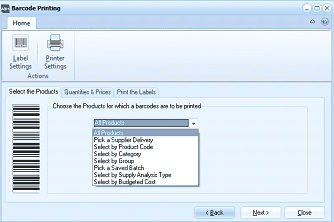
ABM "Barcode Printing" wizard showing the product selection step with the dropdown list expanded. The toolbar shows Label Settings and Printer Settings buttons. The dropdown menu for "Choose the Products for which a barcodes are to be printed" is open, displaying selection options: All Products, Pick a Supplier Delivery, Select by Product Code, Select by Category, Select by Groups, Pick a Goods In Batch, Select by Supply Analysis Type, and Select by Budgeted Cost. Navigation buttons Back, Next, and Close are shown at the bottom.
There are three stages to printing Barcode labels.
- Product Selection: You can select the labels you wish to print based on a supplier delivery, a product range based on product code, or category, or by product group.
- Quantity and Price: Having selected the products to print, the next stage shows a list of those products with the number of labels, together with the product price, product code, and description. The quantity will be automatically allocated based on the quantity on the supplier delivery, or the quantity on hand depending on the selection criteria used.
- Print Labels: The last stage is a preview of how the labels will print, and if you are satisfied that you wish to print these labels, then select "Start Printing"